Everything you need to know about updating rent, occupancy, photos, and documents on your White Feather Investments property page.
On This Page
Go to Portfolio Properties in the top navigation and click on your property. You'll see your property page with the current status, photo, and financial details.
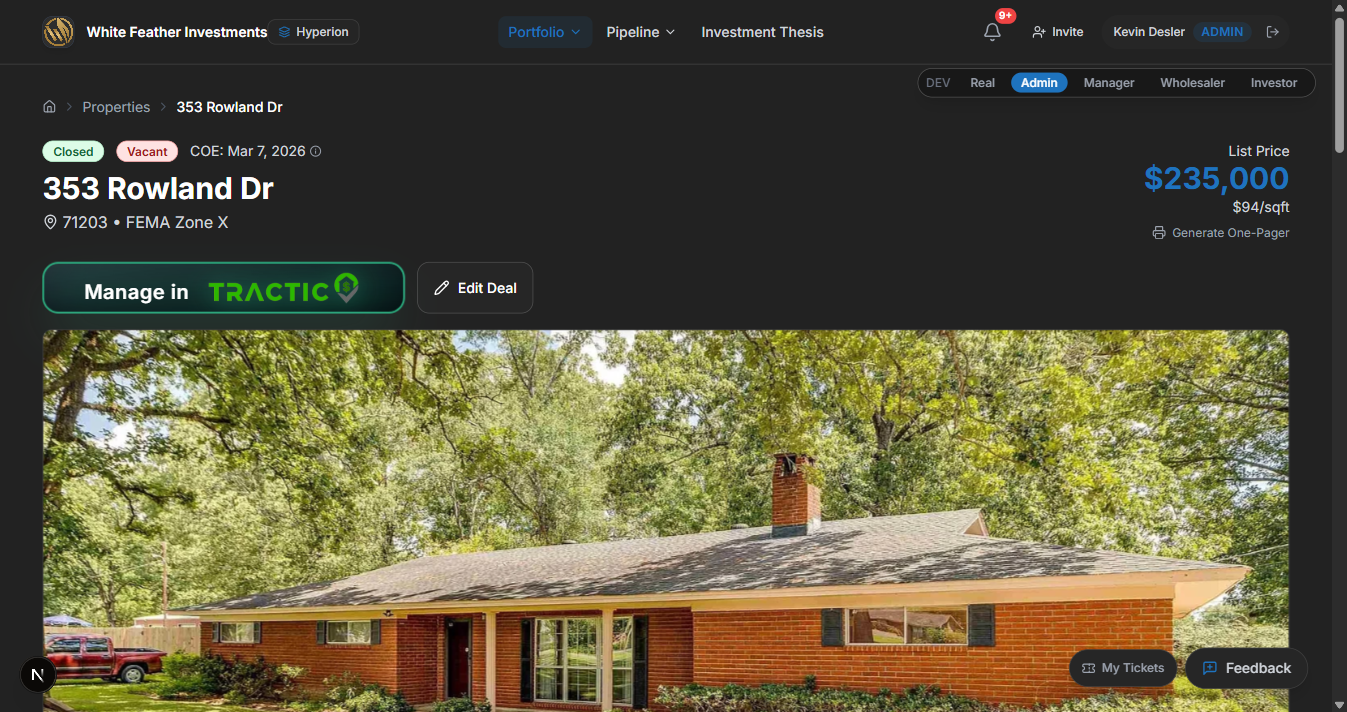
Click the "Edit Deal" button in the action bar below the property header. A panel will slide in from the right side of the screen.
Scroll down in the edit panel until you see the "RENTAL PERFORMANCE" section. This is where you enter your actual rental data.
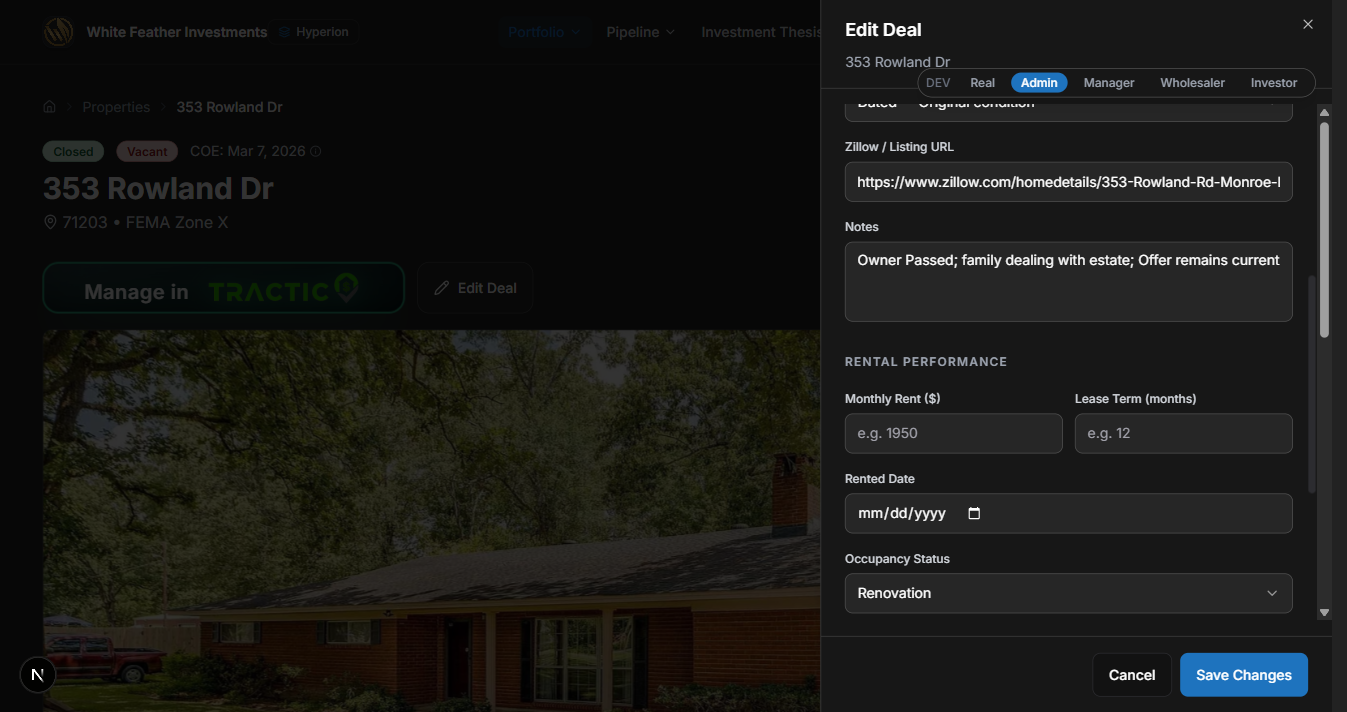
Fill in the following fields:
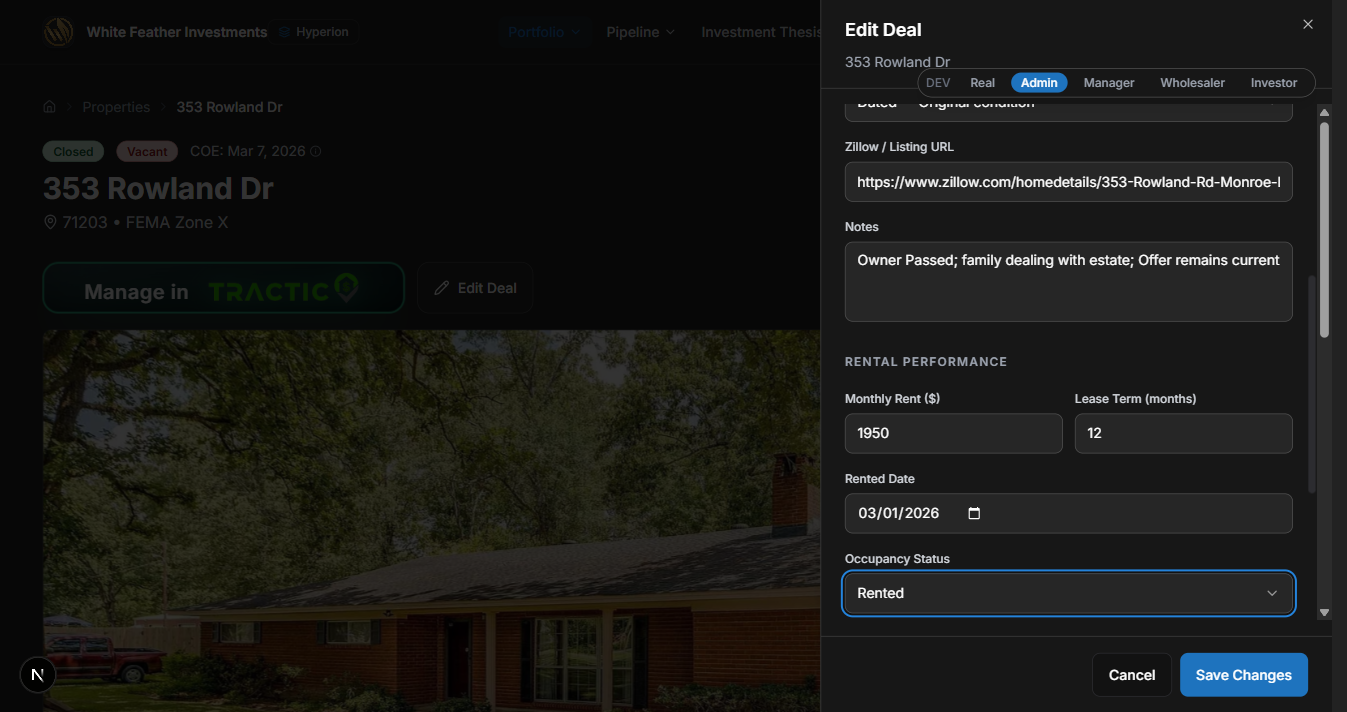
Click "Save Changes" at the bottom of the panel. You'll see a confirmation message when the save is successful.
After saving, your property page will update to show a "Rented $X,XXX" badge next to the CLOSED status, with a comparison to the original rent estimate.
Your property can be in one of three occupancy states:
Rented
Tenant in place, actively paying rent
Available
Property is vacant and ready for a tenant
Renovation
Property is undergoing repairs or upgrades
Change the status in the Edit Deal panel under Rental Performance → Occupancy Status. The property listing on the website will update automatically based on this status.
Property photos help showcase your rental to prospective tenants on the whitefeatherrentals.com website.
On your property page, scroll down to the "Gallery Photos" section below the hero image.
Click "Add Photos" or tap the upload area. You can select multiple photos at once.
Photos are uploaded to our CDN automatically. The first photo becomes the Cover image.
Drag to reorder photos (on desktop, hold and drag; on mobile, press and hold then drag).
Your property page has a Documents tab where you can find shared files like inspection reports, lease agreements, and closing disclosures.
View documents: Click the Documents tab on your property page. Documents marked "Shared" are visible to you.
Upload documents: On CLOSED properties you own, you can upload documents using the upload area in the Documents tab.
Share publicly: Toggle a document to "Shared" to make it visible on the public listing page.
I don't see the "Edit Deal" button on my property
The Edit button only appears for investors assigned to a CLOSED property. Make sure you're logged in with the correct account. If you're still not seeing it, contact your manager.
I don't see the "Rental Performance" section
This section only appears on CLOSED properties. If your property is still in Escrow or Evaluating, the rental fields aren't available yet.
My changes don't seem to be saving
After clicking "Save Changes", you should see a success toast notification. If you see an error, try refreshing the page and logging in again. If the issue persists, submit a bug report using the Feedback button in the bottom-right corner.
How do I upload a Closing Disclosure?
In the Edit Deal panel, scroll to the "Closing Disclosure" section and click the upload area. Only PDF files are accepted. The system will automatically extract key financial data from the document.
Can other people see my notes?
Notes you add in the Edit Deal panel are visible to you and your management team. They are not shown publicly on the listing page.
How do I contact support?
Click the "Feedback" button in the bottom-right corner of any page to submit a bug report or feature request. Your manager will be notified.
Need more help?